

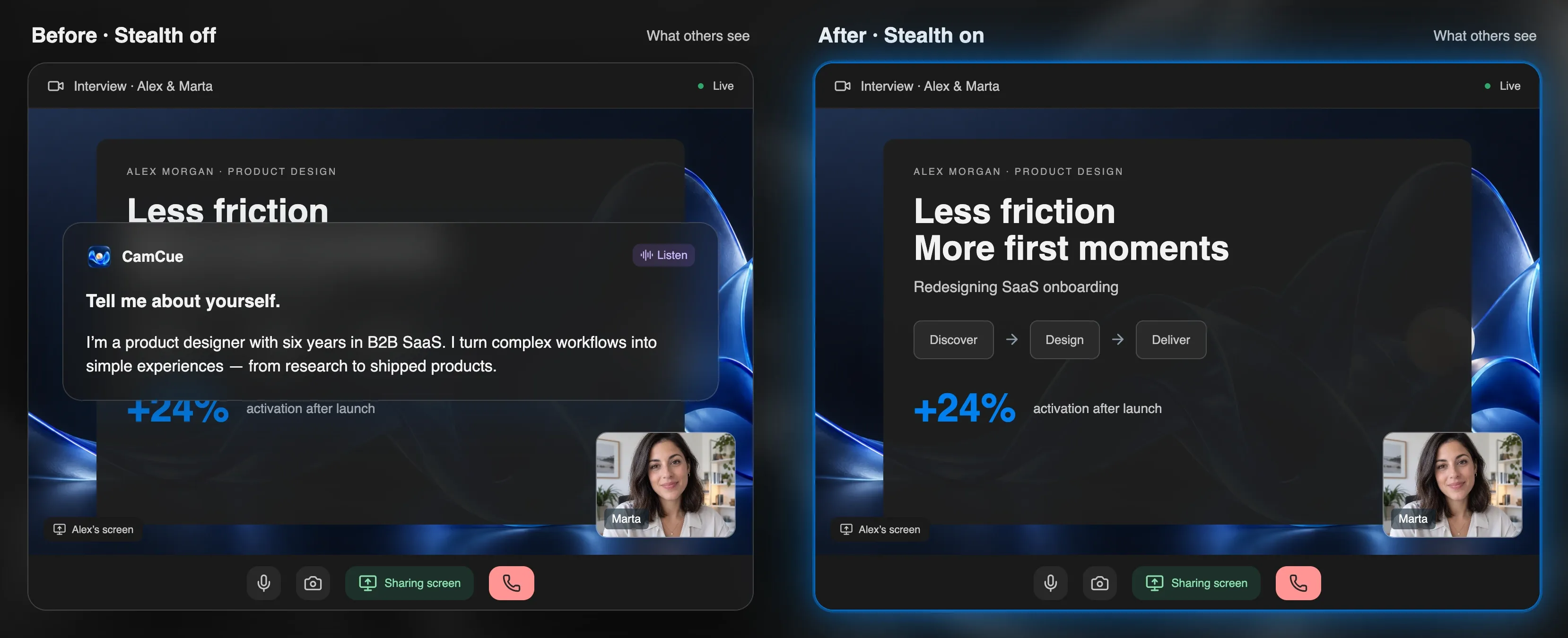
Zoom cannot see which apps run on your computer. It sees what you send: your camera, your microphone, and whatever you share. An AI assistant becomes visible only through one of those channels, or through the way you answer. Here is what each channel reveals and how to check it before a call.
What Zoom actually receives
A video meeting app works with three streams from your computer:
- Camera: whatever is in front of the lens, including a second screen or a phone in view.
- Microphone: your voice and any sound near you, such as typing or an app reading text aloud.
- Screen share: the screen, window, or area you choose to present, and only while you present it.
Zoom does not send a list of running apps to the host. It once had an “attendee attention tracking” feature that told hosts when a participant’s Zoom window was not in focus; Zoom permanently removed it in April 2020. Google Meet and Microsoft Teams work the same way: they see the streams you send, not the rest of your computer. To check your own setup in Teams, see how to test screen sharing in Microsoft Teams.
Where an AI assistant can show up
| Channel | How it can reveal an assistant | What reduces the risk |
|---|---|---|
| Screen share | The assistant’s window is captured with your screen | Share one window, or use an app that asks to be excluded from capture, then check from a second device |
| Camera | A second monitor or phone is in view | Frame the camera on your face only |
| Microphone | Typing, or an app reading text aloud | Use an assistant that does not speak; mute while typing |
| Behavior | Long pauses, eyes reading across the screen, answers that do not survive follow-ups | Prepare your own stories; answer in your own words |
| Recording | A recorder captures more than the shared window | Check how the meeting is recorded |
The last two matter most in interviews. Interviewers rarely suspect software; they notice answers that are not backed by real experience. We cover those signals in how interviewers detect AI help.
Zoom screen-share settings that matter
Sharing one application window is the most predictable option: other windows are not part of the share. If you share the entire screen, Zoom’s capture mode decides how other windows are handled. For apps that ask the system to be excluded from capture, such as CamCue with Stealth on, choose:
Settings → Share screen → Advanced → Screen capture mode → Advanced capture with window filtering
Results still vary by Zoom version and operating system, so always check the received picture. Our five-minute screen-share test shows how with a phone as the second participant.
What is different in proctored assessments
Online assessments may use proctoring software that watches far more than Zoom does. HackerRank’s Proctor Mode, for example, can analyze screenshots and webcam images and flag tab switches and unauthorized tools, and its desktop app mode adds operating-system-level monitoring. Capture exclusion does not hide an app from that kind of monitoring. See Can HackerRank detect AI? for details.
The question that matters more
Whether Zoom can see an assistant is a technical question. Whether you may use one is a question of the interview’s rules. Many employers forbid live AI help, and some disqualify candidates for it. Read Is using AI in interviews cheating? and ask the recruiter when you are unsure. For calls where help is allowed, the CamCue guides for Zoom, Google Meet, and Microsoft Teams cover setup.