
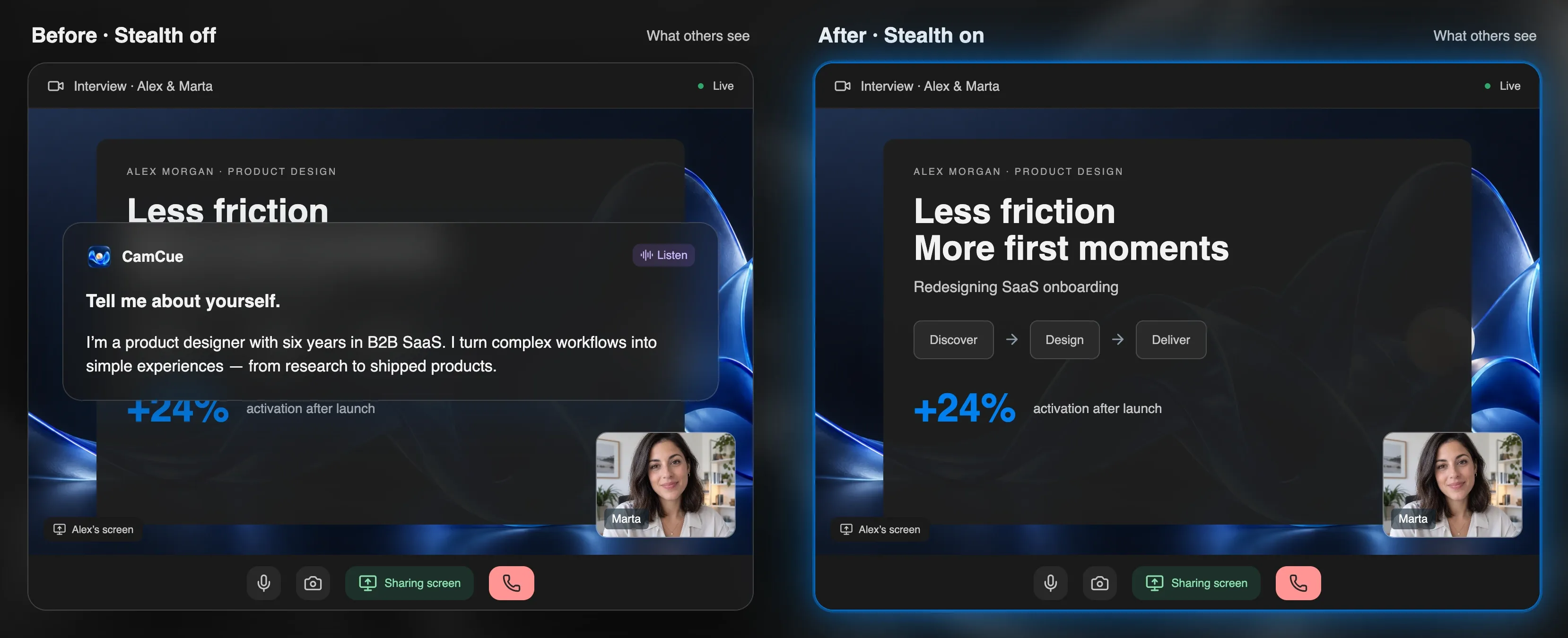
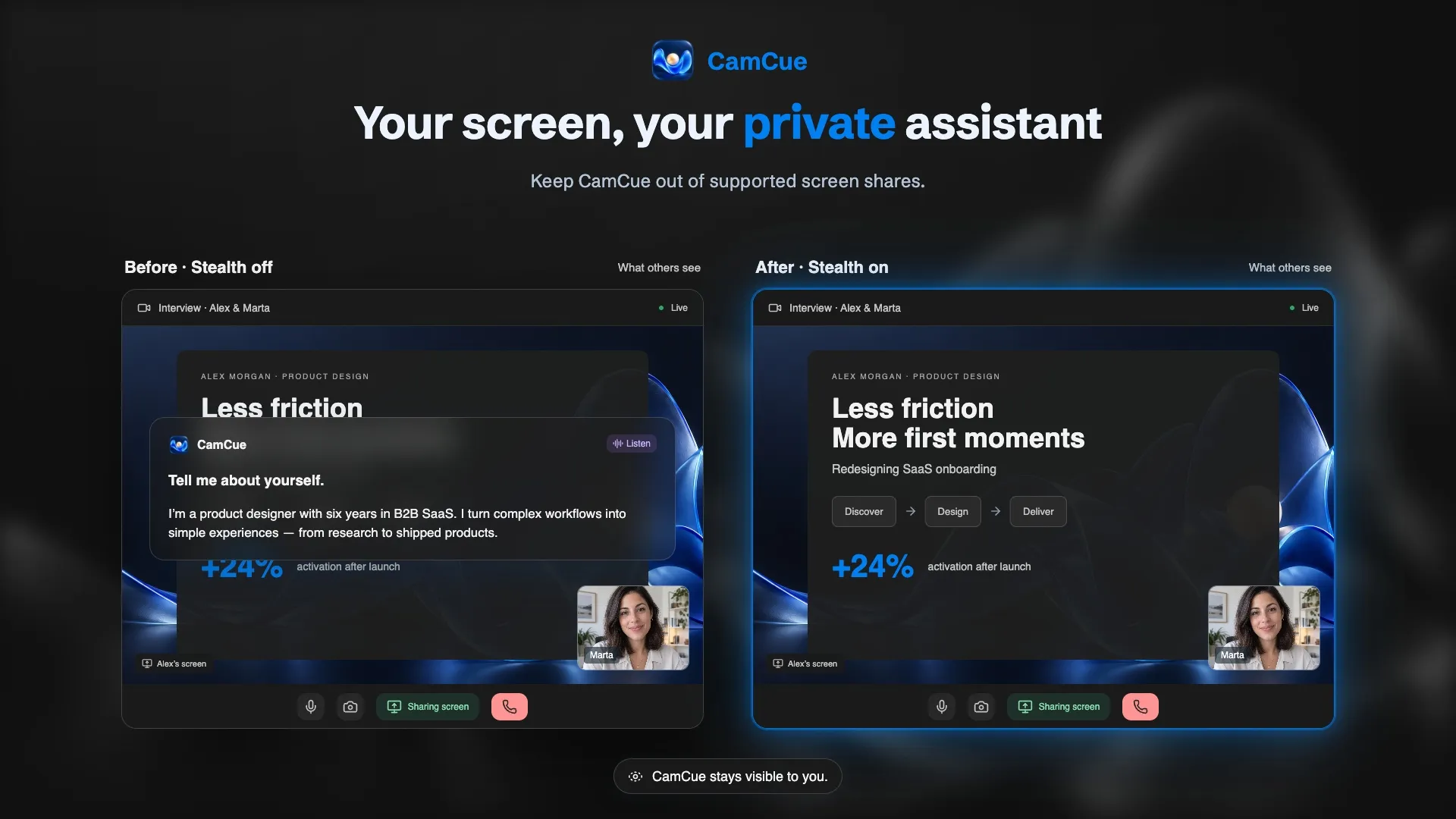
An invisible AI assistant is one you can see on your own display while the people on your call cannot. CamCue’s Stealth setting is built for exactly that: you keep your talking points next to the camera, and supported screen shares show only what you meant to present.
How Stealth works
Modern operating systems let an app ask to be left out of screen capture. CamCue uses that request when Stealth is on:
- On macOS, CamCue marks its windows as excluded from capture and moves out of the Dock. You open it from the menu bar.
- On Windows, CamCue uses the system setting that excludes a window from capture, available on Windows 10 version 2004 and later.
The meeting or recording app then decides how to honor that request. When it does, the people watching see whatever is behind the CamCue window. A blue glow around CamCue reminds you that Stealth is active.
What Stealth does and does not cover
| Situation | Covered by Stealth? |
|---|---|
| Screen sharing in a supported meeting app | Yes, when the app honors capture exclusion |
| Screenshots and screen recordings on supported systems | Usually; depends on the tool |
| Sharing a single, different application window | CamCue is not part of that window anyway |
| A camera or phone pointed at your display | No |
| Apps that list running processes, or proctoring software | No |
| Remote-control or remote-desktop sessions | Not guaranteed |
Stealth is a privacy feature for screen sharing. It is not a way to get around exam proctoring or interview rules.
Recommended sharing setups
Share one window when you can
Sharing a specific application window, such as your browser, slide deck, or editor, is the most predictable option in every meeting app. CamCue is a separate window, so it is not included.
Zoom
If you share your entire screen in Zoom, CamCue recommends this capture mode:
Settings → Share screen → Advanced → Screen capture mode → Advanced capture with window filtering
Google Meet and Microsoft Teams
Both apps let you present a window, a browser tab, or the entire screen. Choose a window or tab when possible. If you present the entire screen, run the test below with the same browser or desktop app you will use on the call.
Test it before every important call
- Turn on Stealth and open CamCue on the display you plan to share.
- Start a meeting with a second device, such as your phone or another computer, signed in as a different participant.
- Share your screen exactly as you will on the real call: same app, same display, same sharing mode.
- On the second device, confirm that CamCue does not appear in the received picture.
- Repeat the test after operating-system or meeting-app updates.
If CamCue appears in the shared picture, do not rely on Stealth in that setup. Switch to window sharing or a different capture mode and test again. The step-by-step guide How to check what others see when you share your screen covers each app.
Pair Stealth with Focus Mode
Focus Mode turns CamCue into a compact window with adjustable transparency, background blur, and its own dark theme setting. Pin it above other apps and place it right under your camera, so you keep eye contact while you glance at your notes.
Use it where it is allowed
Many interviews, exams, and assessments do not allow outside help. Stealth keeps private notes private when you present; it does not change those rules. Use CamCue for practice and in conversations where assistance is permitted.