
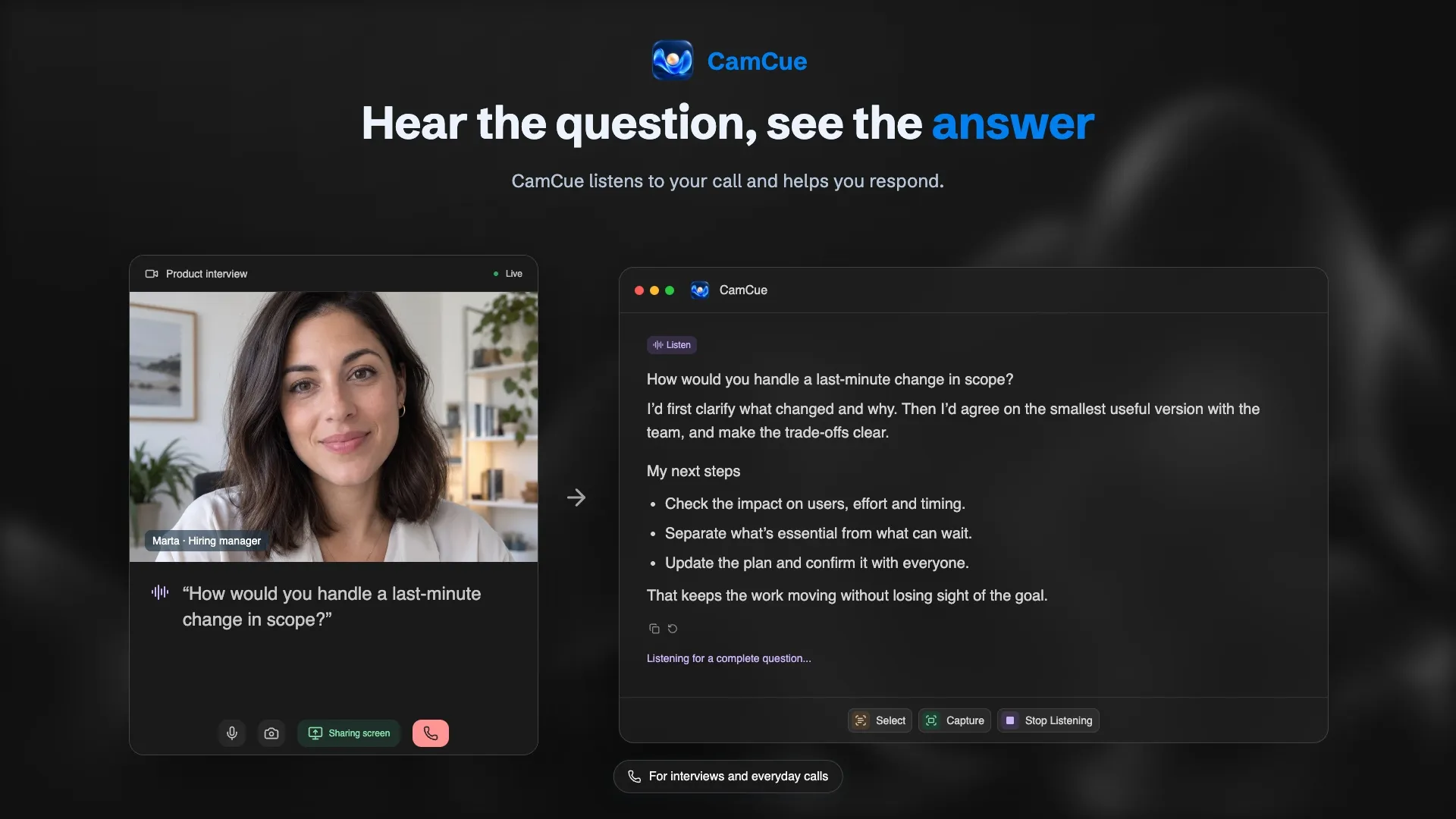
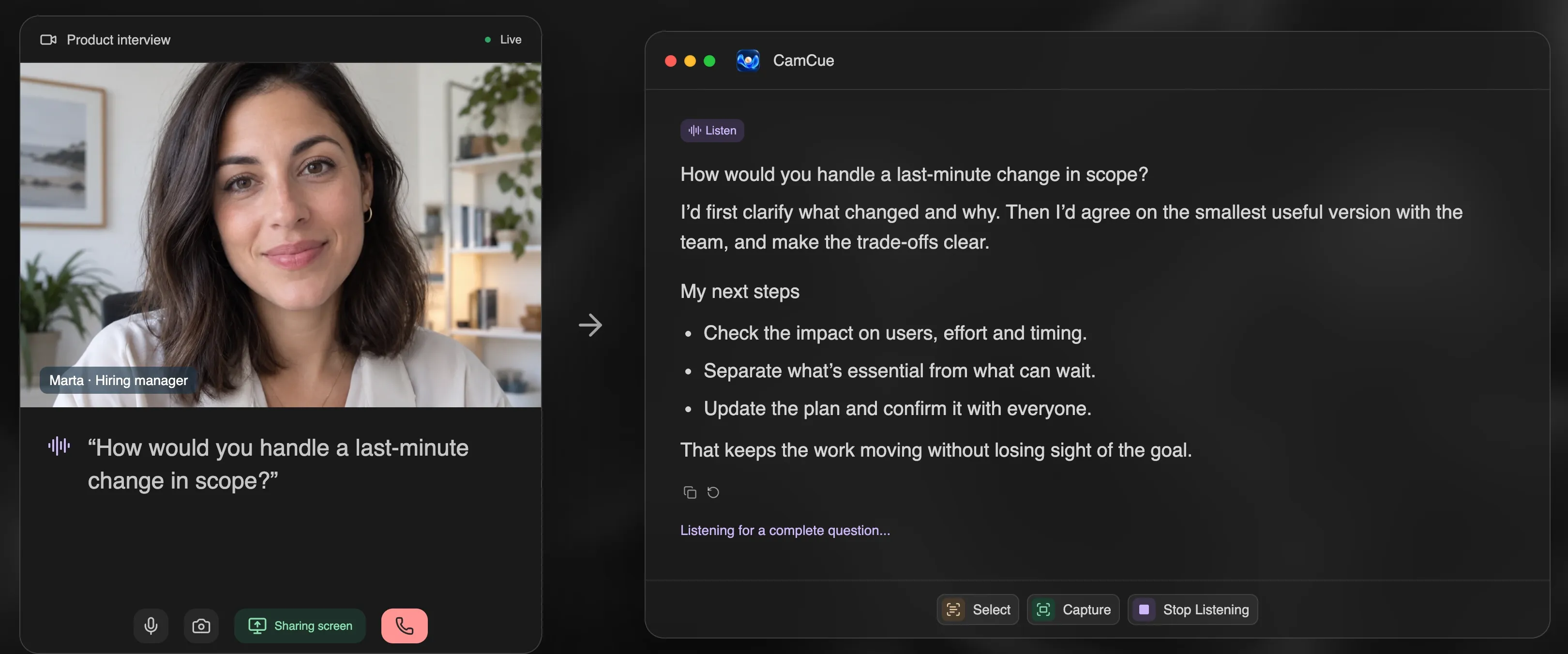
Most AI meeting assistants take notes for later. CamCue helps while you are still talking: when someone asks a question, it drafts a short, structured answer from your project documents, product notes, or pricing sheet, so you can respond with confidence instead of “I’ll get back to you.”
Built for the moment someone asks a question
Choose Call mode and add the material you might need: a product one-pager, a project brief, meeting notes, or an FAQ. During the call, start Listen. CamCue transcribes the conversation on your computer, recognizes complete questions, and drafts a response grounded in what you added.
Where CamCue helps
| Call type | Context to add | What you get |
|---|---|---|
| Sales and demos | Product sheet, pricing, competitor notes | Answers to feature and pricing questions |
| Client meetings | Project brief, timeline, status notes | Clear status updates and next steps |
| Team discussions | Specs, decisions, research summaries | Talking points and trade-offs |
| Calls in a second language | Glossary and key phrases | Answers in your chosen language |
No bot in the call
CamCue runs on your desktop, not in the meeting. It works with the audio playing on your computer and your microphone, so the other participants do not see an extra attendee, and you do not need to connect your calendar or meeting account. It works the same way in Zoom, Google Meet, Microsoft Teams, Webex, and phone calls on your computer.
Shared screens, slides, and chat
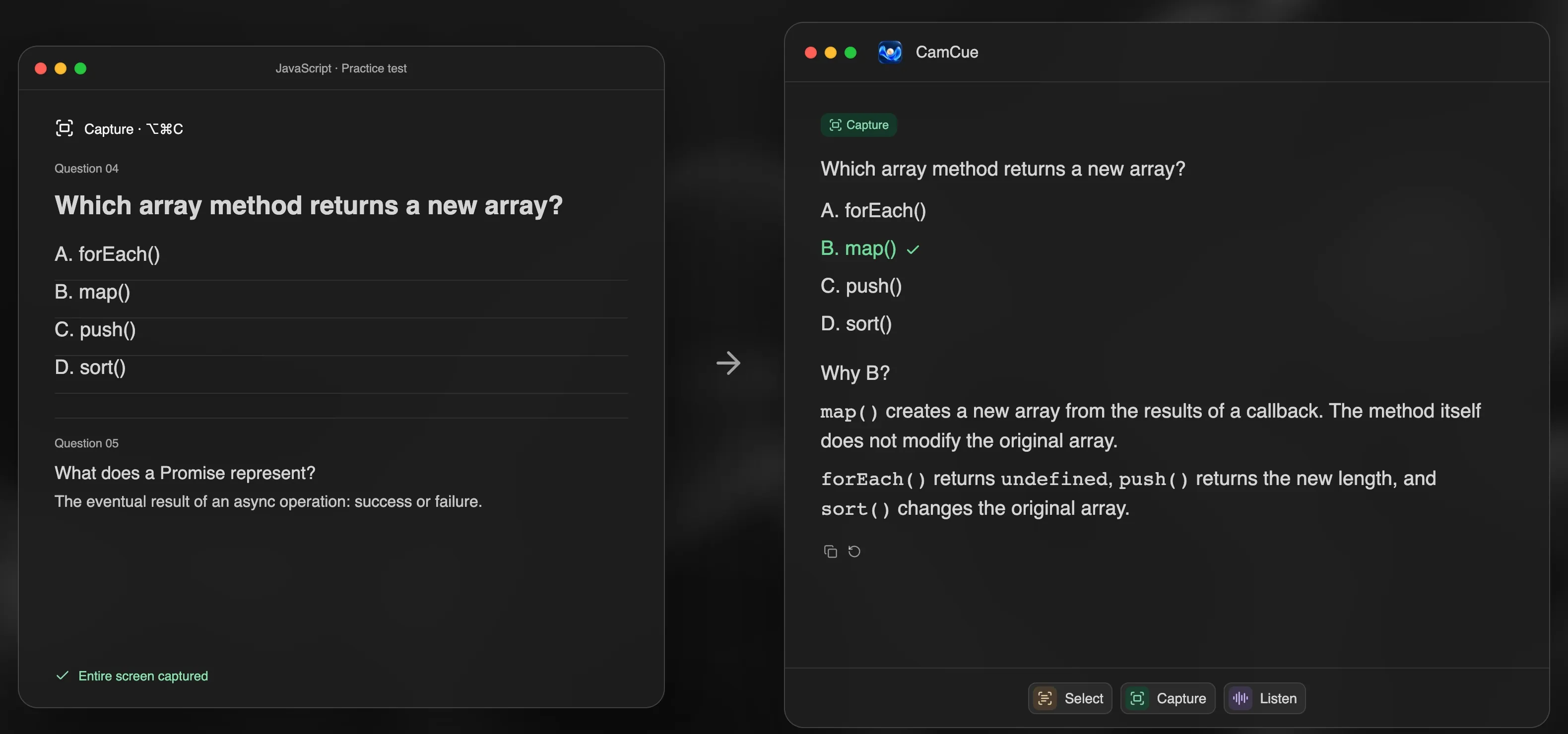
Not every question is spoken. When a client shares a spreadsheet or someone posts a question in the chat, use Select to drag over that part of the screen, or Capture to analyze everything visible.
Set up Call mode
- Open the context panel and choose Call.
- Upload documents: PDF with selectable text, DOCX, XLSX, PPTX, TXT, Markdown, CSV, or JSON.
- Add instructions, such as “Keep answers under three sentences” or “Use our product names exactly.”
- Choose the response language and length.
- Save a preset per client or project, so the next call takes one click to set up.
Stay present on camera
Focus Mode turns CamCue into a compact, movable window with adjustable transparency. Pin it above other apps and place it close to your camera, so you can glance at a suggestion without looking away from the people you are talking to. If you share your screen, Stealth asks supported capture apps to leave CamCue out.
Privacy and consent
Listen speech recognition runs locally after a one-time model download of about 575 MB, and raw audio is not saved or uploaded. Recognized text and relevant document excerpts are sent through CamCue’s service to AI providers to generate answers. History stays on your computer. Tell participants when your workplace or local law requires it, and avoid adding confidential documents you are not allowed to process with AI services. See the privacy policy.