
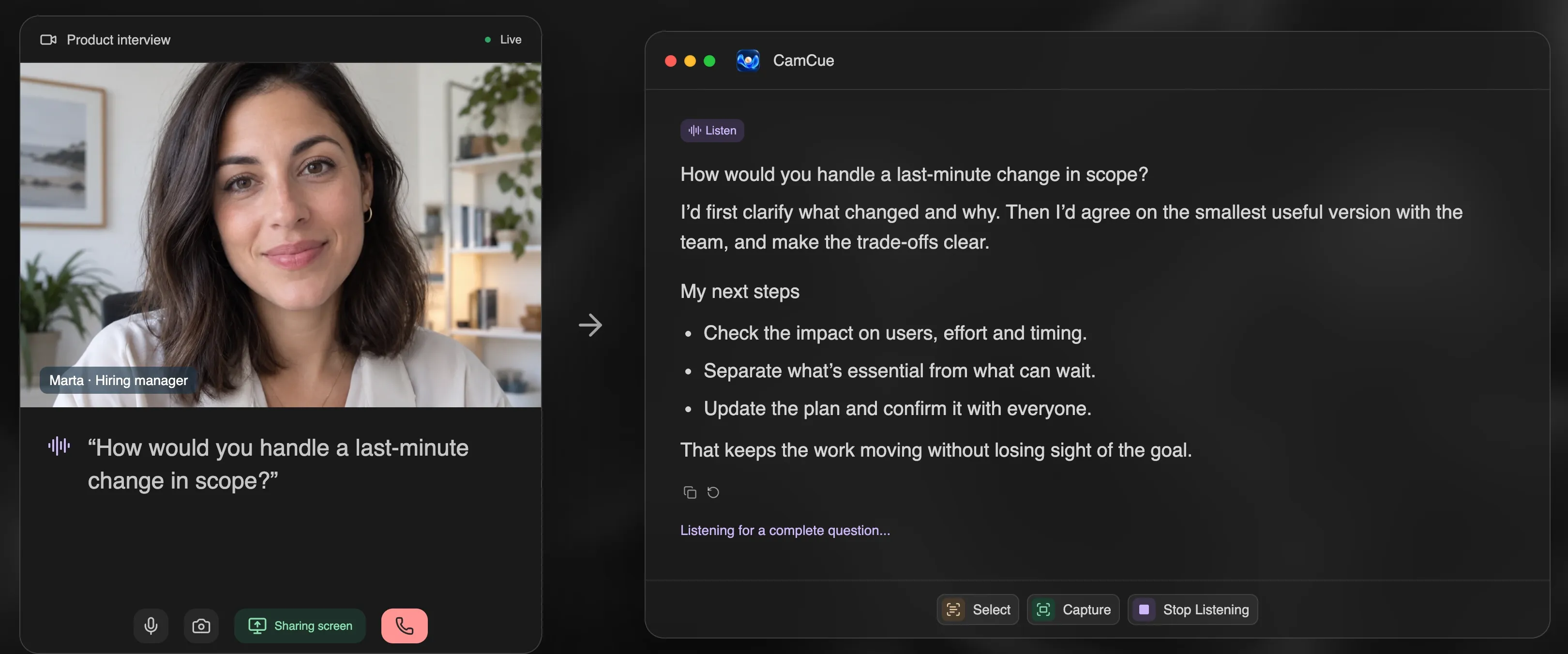
An AI interview assistant listens for the question you are asked and drafts a relevant answer while you are still in the conversation. CamCue does this on your desktop: it recognizes spoken questions with local speech recognition, reads questions from your screen, and shapes each draft around your CV and the role you applied for.
How CamCue helps during an interview
CamCue gives you three ways to bring a question into the app. You can switch between them at any time with buttons or global keyboard shortcuts.
- Listen transcribes the interviewer and your microphone on your computer, detects a complete question, and drafts an answer. Your own words are used as conversation context, so follow-up answers stay consistent.
- Capture analyzes everything on your screen in one action. It is useful for written case questions, take-home tasks, or a shared slide.
- Select lets you drag over one question or paragraph, so the answer focuses on exactly that text.
Because CamCue is a desktop app, it does not join your call as a bot. It works alongside Zoom, Google Meet, Microsoft Teams, Webex, and other meeting apps that play audio on your computer.
Answers based on your CV and the job description
Generic AI answers are easy to spot. CamCue starts from your own material instead:
- Choose Interview mode.
- Upload your CV and supporting documents. PDF with selectable text, DOCX, XLSX, PPTX, TXT, Markdown, CSV, and JSON are supported.
- Paste the job description or a public job link.
- Add instructions, for example “Use STAR for behavioral questions” or “Keep answers under 90 seconds.”
- Pick the response language and length, then save everything as a reusable preset.
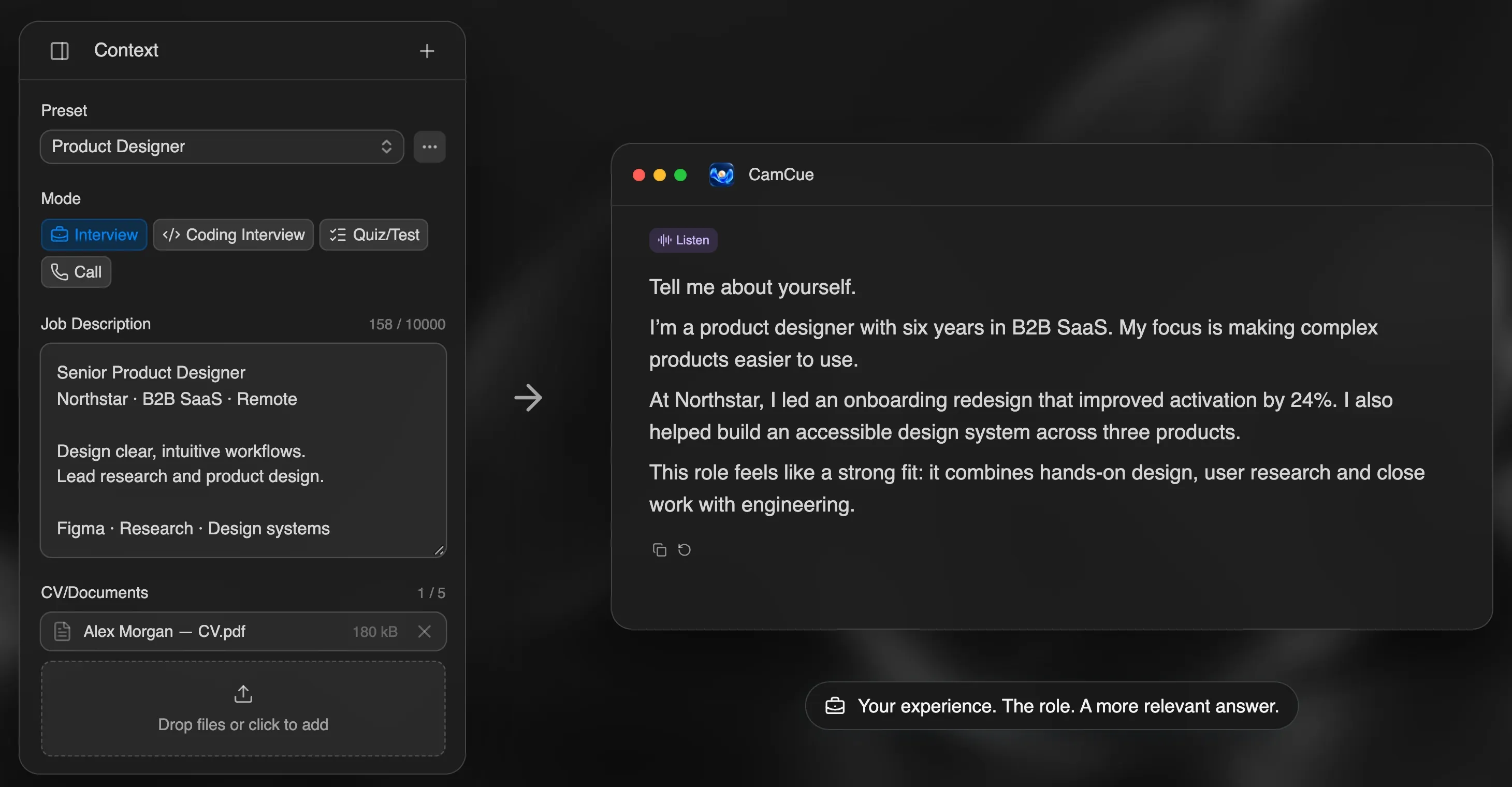
When the interviewer asks “Tell me about yourself,” the draft pulls from the experience in your CV and connects it to the requirements in the job description. For behavioral questions such as “Tell me about a conflict with a stakeholder,” add notes about real situations to your context so the draft has true details to work with.
Questions CamCue is built for
| Question type | Example | Best input |
|---|---|---|
| Introduction | Tell me about yourself. | Listen |
| Behavioral | Describe a time you missed a deadline. | Listen |
| Role fit | Why do you want to work here? | Listen |
| Written case | A prompt shared in the meeting chat or on a slide | Capture or Select |
| Technical | Algorithm, SQL, or code-reading questions | Coding Interview mode |
Practice first, then use it live
The built-in demo is the fastest way to rehearse. Choose “No call? Try a demo” and CamCue asks interview questions out loud, then drafts answers from your context. Move to the next question when you are ready. Rehearsing this way shows you where your CV lacks concrete examples, before a real interviewer asks.
For a live interview, open CamCue before the call, select your preset, and start Listen. Focus Mode turns the workspace into a compact, semi-transparent window that you can place near your camera.
Screen sharing and Stealth
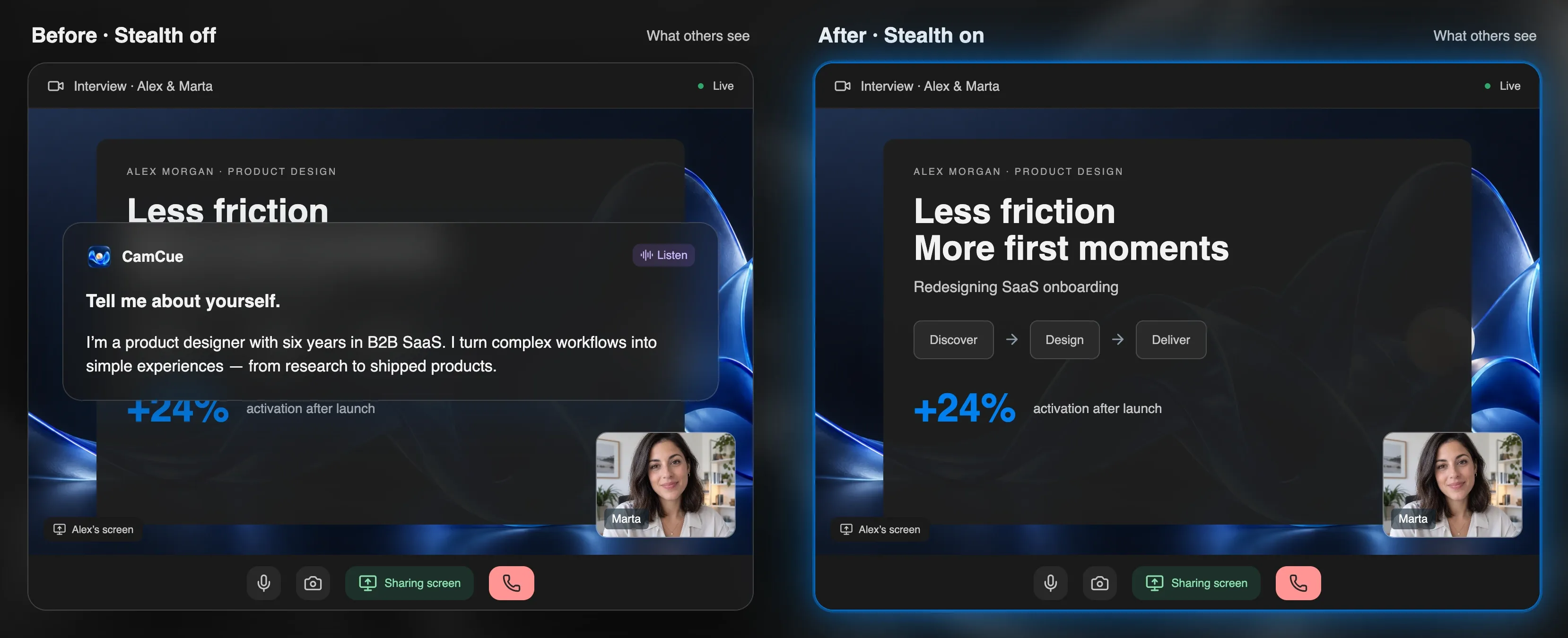
If you need to share your screen, Stealth asks supported capture apps to exclude the CamCue window. Results depend on your operating system and meeting app, so always check the receiving view from a second device. The Stealth guide explains how it works and how to test it.
What stays on your computer
Listen speech recognition runs locally after a one-time model download of about 575 MB, and raw audio is not saved or uploaded. Recognized text, extracted screen text, and relevant context are sent through CamCue’s service to AI providers to generate answers. Session history and presets stay on your computer. You do not need your own API key. Read the privacy policy for details.
Use it honestly
CamCue is meant to help you remember your own experience and structure it clearly, not to invent it. Review every draft, correct anything inaccurate, and answer in your own words. Follow the rules of each interview: many employers allow preparation tools but not live assistance.
Platforms and pricing
CamCue runs on Apple Silicon Macs with macOS 14.2 or later and on x64 PCs with Windows 10 version 2004 or later, or Windows 11. The Free plan includes limited credits; PRO adds unlimited AI credits for Listen, Capture, and Select, subject to technical limits. See the Mac guide, the Windows guide, and current prices.