
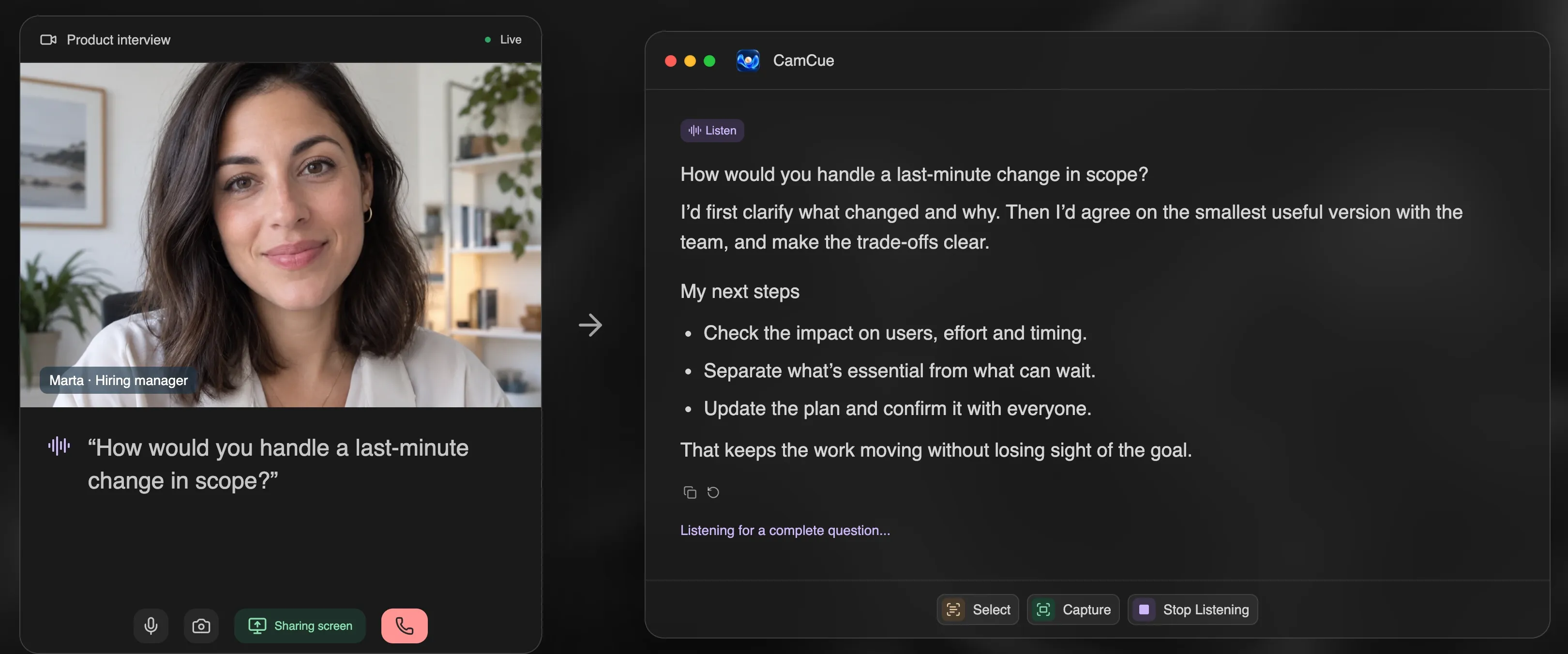
CamCue is a desktop AI interview assistant that works next to Microsoft Teams without joining the meeting. It listens to the interviewer through your computer’s audio, reads questions from your screen, and drafts answers from your CV and the job description.
How does CamCue work in a Teams interview?
- Listen hears the other participants through the sound your computer plays. It works with the Teams desktop app and Teams in a browser, and does not use your microphone.
- Capture and Select read what is on screen: a question typed in the meeting chat, a shared slide, or a coding exercise.
- Answers follow your context: your CV, the job description, and any notes you add before the call.
- There is no bot, no calendar connection, and no Microsoft account login. The other participants see only you.
Set up before the Teams call
- Install CamCue on your Mac or Windows PC and sign in.
- Choose Interview mode, add your CV, and paste the job description.
- In Teams, open Settings → Devices and pick the speaker you will use. On Windows, make the same device the default output in Sound settings, because Listen records the default output.
- Run “No call? Try a demo” once to confirm that questions are recognized.
- If you will share your screen, start a private Meet now meeting, join it from your phone, and check what others see.
Screen sharing in Teams
| Teams option | What others see | With CamCue open |
|---|---|---|
| Window | Only the window you pick | CamCue is not part of the share. The most predictable choice. |
| Screen | Everything on that display | Turn on Stealth, or keep CamCue on a display you do not share, and test from a second device. |
| PowerPoint Live | Your slides | Other windows are not shared. |
With Stealth on, CamCue asks the operating system to leave its windows out of screen capture. Whether a capture honors that depends on the app, its version, and your system, so the Teams screen-sharing test is worth five minutes before an important call. The Stealth guide explains the details.
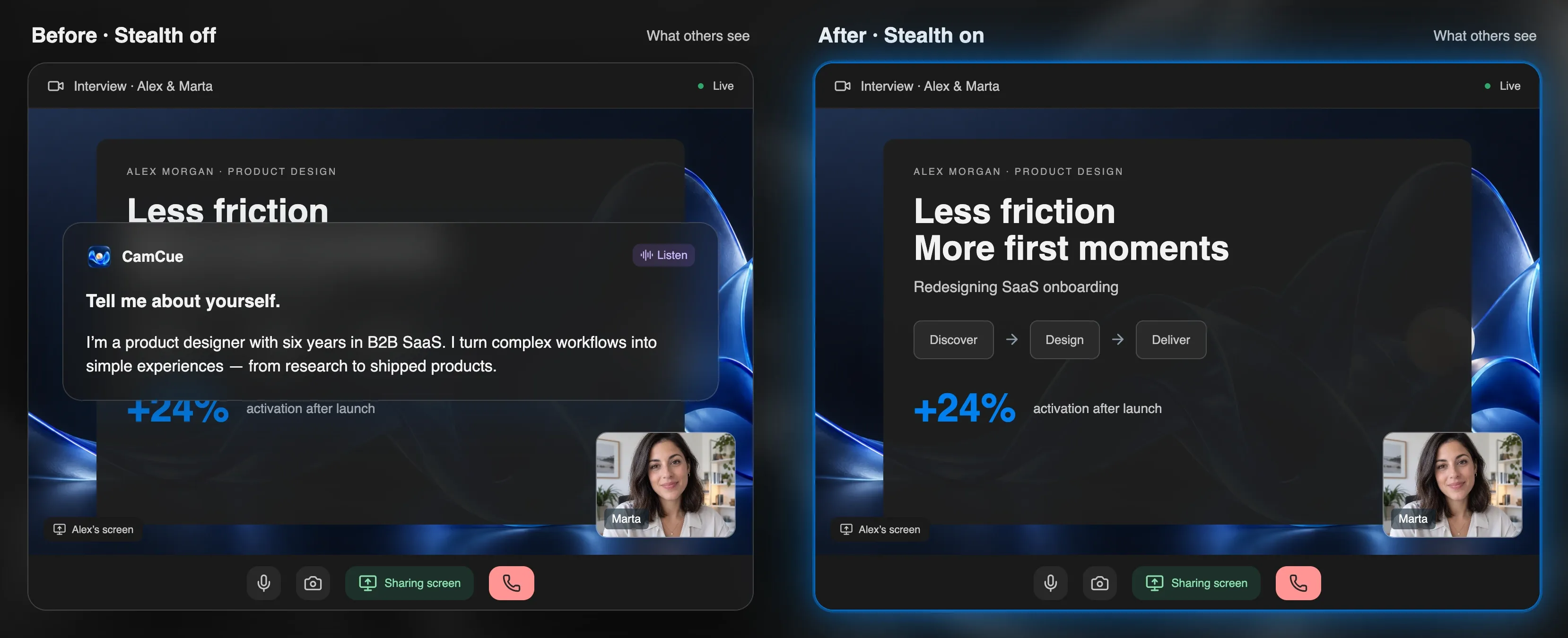
What Teams can and cannot see
Teams receives your camera, microphone, and shared content, and the organizer may record or transcribe the meeting. It does not list other apps running on your computer. An assistant can still show up through a screen share, a second screen in camera view, or answers that do not hold up under follow-up questions. Can Zoom detect an AI assistant? covers each channel, and the same applies to Teams.
Use it where it is allowed
Many interviews do not allow live AI help. Use CamCue to practice, and in live calls only where assistance is permitted. Is using AI in interviews cheating? explains how to check the rules. For client meetings and internal calls in Teams, see the real-time AI assistant for calls.


