

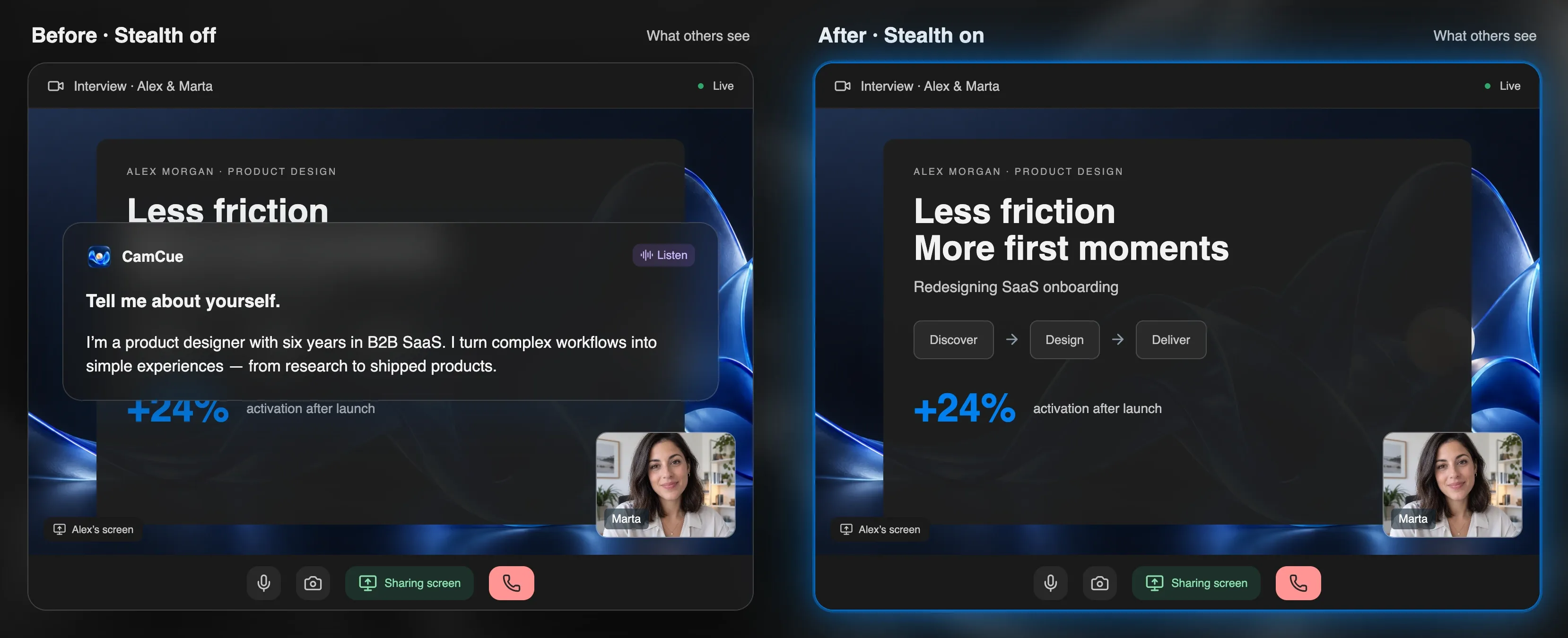
The only reliable way to know what people see when you share your screen in Microsoft Teams is to watch the meeting from a second device. The built-in test call checks your camera and microphone but not screen sharing. This five-minute test covers both, and works the same for interviews, client calls, and presentations.
The five-minute test
- Start a private meeting. In Teams, open Calendar and choose Meet now, or create a meeting with only yourself as the attendee.
- Join from a second device. Open the meeting link on your phone in the Teams app, or on another computer in a browser. Mute the second device’s microphone and speaker to avoid echo.
- Share exactly as you will on the real call. On your computer, choose Share and pick the same option you plan to use: your entire screen, a specific window, or a PowerPoint.
- Look at the second device. That picture is what every participant receives. Open the windows you will use during the call and check what appears.
- Check sound. If you will play a video, turn on Include computer sound and confirm that the second device hears it.
The whole test takes about five minutes. Repeat it after Teams or operating-system updates, and before any important call.
Screen, window, or PowerPoint?
| Option | What others see | Use it when |
|---|---|---|
| Entire screen | Everything on that display, including notifications and any window you open | You need to switch between several apps |
| Window | Only that application window | You present one app, such as a browser or editor |
| PowerPoint Live | Your slides, with notes visible only to you | You present a deck |
Sharing a window is the most predictable choice: other windows, chat pop-ups, and the rest of your desktop are not included. If you share the entire screen, turn on Do Not Disturb first and close apps you do not need.
What to look for on the second device
- Notifications: chat messages, email previews, and calendar pop-ups.
- Private windows: notes, documents, or tools you did not mean to show.
- The wrong tab or display: with two monitors, check that the correct one is shared.
- Readability: text that looks fine on your screen may be too small for others. Zoom in on the shared app if needed.
- Lag: scroll and switch tabs to see how smooth it looks on the other end.
Fixes for common problems
Others see a black screen
On a Mac, Teams needs screen recording permission: System Settings → Privacy & Security → Screen & System Audio Recording. Turn it on for Teams, then quit and reopen the app. On Windows, update Teams and your graphics driver, and try sharing a window instead of the whole screen.
Others cannot hear the video you play
Stop sharing and share again with Include computer sound turned on.
The share looks blurry
Share a window instead of a high-resolution entire screen, or reduce the display scaling while you present.
Keeping private notes private
If you keep notes or an assistant open, put them on a display you do not share, share a single window, or use an app that asks the system to be excluded from capture, such as CamCue with Stealth on. Support for capture exclusion varies by app and operating system, so the second-device test still applies. The Stealth guide explains the details.
For Zoom and Google Meet, the same approach works; see how to check what others see when you share your screen. And if you wonder what the meeting app itself can see on your computer, read Can Zoom detect an AI assistant?, which applies to Teams too.