
Yes, often. HackerRank’s integrity features go well beyond checking whether your code matches someone else’s. In tests that enable its Proctor Mode, the platform analyzes screenshots of your screen, webcam images, tab switches, new monitors, and how your code was typed. This guide summarizes what each mode monitors, based on HackerRank’s own documentation.
Sources: HackerRank’s help center articles on test integrity and Proctor Mode, read on October 19, 2026. Each employer chooses which features to enable, so a given test may use more or fewer of them.
Three levels of monitoring
| Mode | What it adds |
|---|---|
| Secure Mode | A controlled browser environment: full-screen required, copy and paste blocked, multiple monitors prevented, alerts on tab switches |
| Proctor Mode (AI add-on) | Everything in Secure Mode, plus screenshot analysis, webcam anomaly detection, AI plagiarism detection, and a session replay for reviewers |
| Desktop App Mode (AI add-on) | Everything in Proctor Mode, plus operating-system-level monitoring through a small native app |
What Proctor Mode flags
According to HackerRank’s documentation, Proctor Mode records and flags:
- Tab switches and leaving full screen.
- Webcam anomalies: no face in view, or multiple faces.
- Phones and tablets visible in the webcam image, even partially.
- New monitors connected during the test.
- Unauthorized tools in screenshots. Periodic screenshots are classified as suspicious or not. The examples HackerRank lists include answer-sharing sites, external AI coding assistants, invisible overlays, collaboration tools, and screen recorders.
- Typing patterns in the editor that suggest outside help.
- Gaze patterns, such as repeatedly looking away and then typing, in limited availability.
Copy and paste is disabled outright. With Proctor Mode, AI plagiarism detection is on by default and looks at your behavior, how your code changed over time, and similarity to other submissions.
What reviewers see
Reviewers get an integrity summary rated by severity, the evidence behind each signal, and a full session replay with a searchable timeline synced to screenshots. Webcam images can be captured every five seconds and screenshots every fifteen seconds, more often around violations.
What this means for desktop assistants
A desktop AI assistant that asks the operating system to stay out of screen capture is built for video calls, not for proctored assessments. Proctoring looks at more than a screen share: webcam images, your typing, gaze, and, in Desktop App Mode, the operating system itself. Capture exclusion does not hide an app from that kind of monitoring, and HackerRank explicitly lists invisible overlays among the things it looks for.
The better use of AI for coding tests
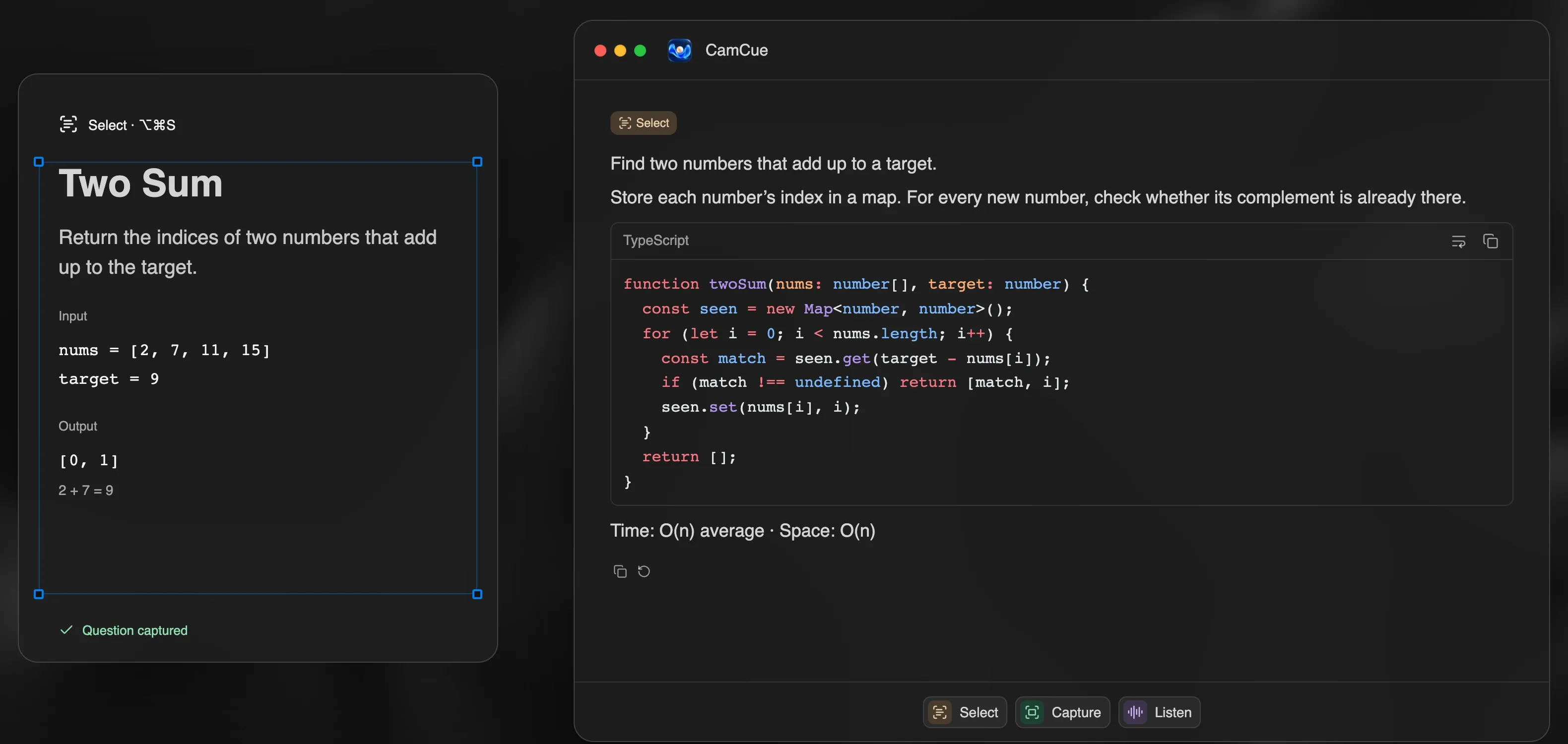
- Practice on similar problems. Solve a problem yourself, then compare your approach with an AI explanation and rewrite the solution from memory. CamCue’s Coding Interview mode is built for this kind of study, and our LeetCode practice guide has a routine.
- Practice explaining. Live coding rounds score your reasoning, edge cases, and testing as much as the final code.
- Read the rules of each test. Assessments that allow AI say so. If they do not, assume they do not.
For live coding calls on Zoom or Meet, which work differently from proctored tests, see Can Zoom detect an AI assistant? and how interviewers detect AI help.