

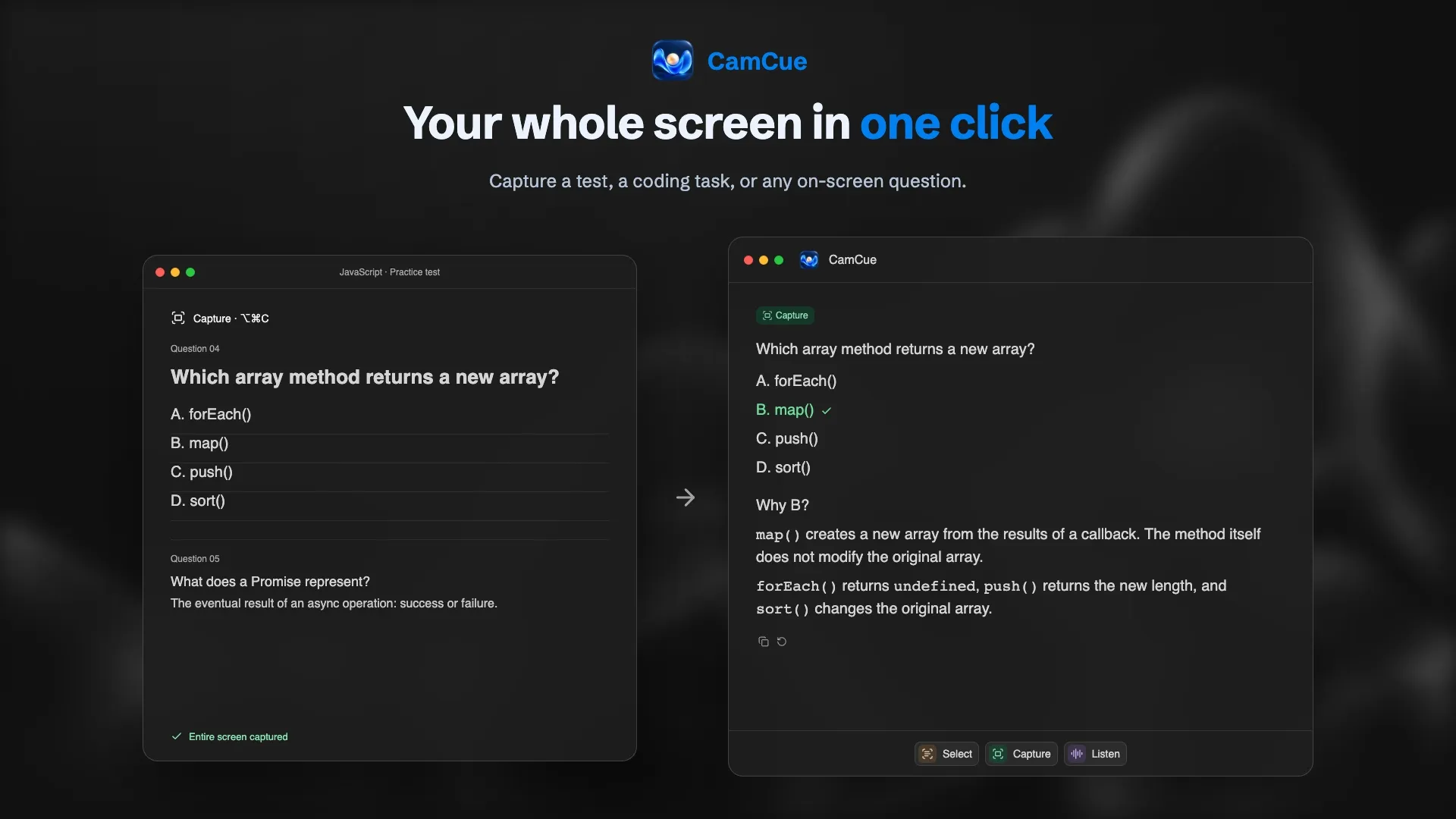
An AI that can see your screen answers questions about what is in front of you, without copying and pasting: a question in a document, an error in your editor, a chart in a meeting. Screen-aware assistants work in three different ways, and the differences matter for both usefulness and privacy.
Three ways an AI can see your screen
| Approach | How it works | Typical use | Privacy profile |
|---|---|---|---|
| On-demand capture | You press a shortcut; the app reads the whole screen or an area you select | Questions in documents, code, quizzes, slides | Sees only what you capture, only when you ask |
| Attached screenshot or window | You attach an image or app window to a chat | One-off questions to a general assistant | Sees only what you attach |
| Live view | The assistant watches your screen continuously while a session runs | Guided help while you work | Sees everything during the session |
On-demand capture: what CamCue does
CamCue is a desktop app for Mac and Windows with two screen inputs:
- Capture analyzes the entire screen in one action.
- Select lets you drag over one area, such as a single question, so the answer stays focused.
Both run only when you trigger them, by button or global shortcut. CamCue combines what it reads with the context you added, such as your CV, a job description, or project documents, and with Listen, which transcribes questions from your computer’s audio.
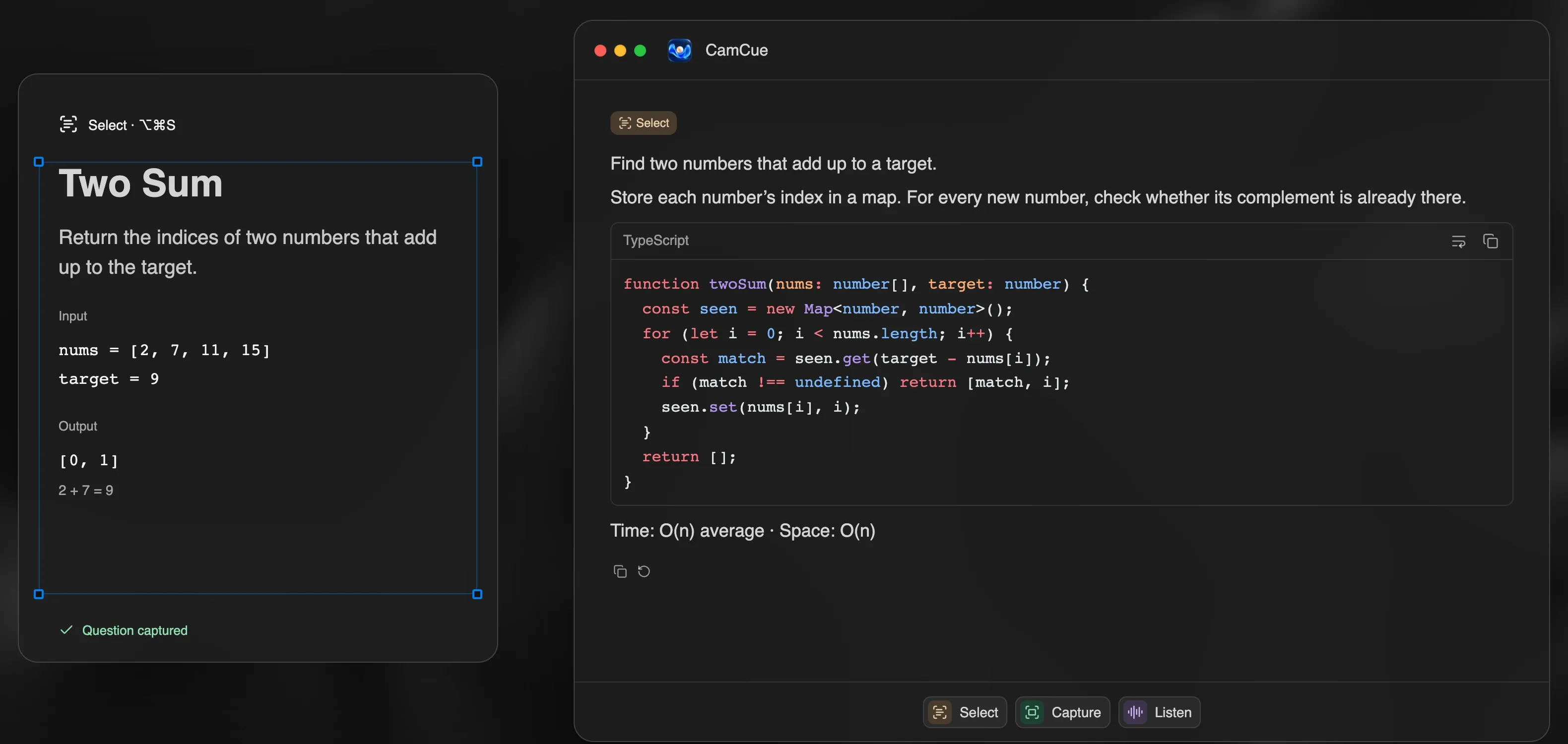
It is built for interviews, coding questions, quizzes, and calls; see the AI interview copilot and the AI coding interview assistant.
What to check before you let an AI read your screen
- When does it look? On demand is easier to control than continuous capture.
- What leaves your computer? Most assistants send screen text or images to a cloud AI provider. CamCue sends text extracted from your screen and relevant context through its service to AI providers; it keeps session history on your computer. Details are in the privacy policy.
- Is anything stored? Look for whether screenshots or extracted text are kept, and for how long.
- What about other people’s data? Shared documents and meeting content may belong to your employer or clients. Do not capture what you are not allowed to process with AI services.
- Permissions. On a Mac, screen-reading apps need Screen & System Audio Recording permission. On Windows, desktop apps can capture the screen without a separate prompt, so trust matters even more.
Screen-aware AI during video calls
If you use a screen-reading assistant during a call where you share your screen, its window can appear in the share. Some apps ask the system to be left out of capture; CamCue does this with Stealth. Support varies by meeting app and operating system, so check what others see from a second device. And follow the rules of the meeting: many interviews and assessments do not allow live AI help, as covered in Is using AI in interviews cheating?